Day 6 — Optimized Images: The <Image> Component
🧭 Day 6 — Optimized Images: The <Image> Component
Zero to Hero — Hands-on Next.js Tutorial
Images are the heavyweights of the web. They account for the majority of bytes downloaded on most pages.
Next.js solves this with the <Image> component, an extension of the HTML <img> tag.
🟦 1. Why Not Just Use <img>?
Standard <img> tags are dumb. They load the original file regardless of the user’s screen size or connection.
The <Image> Superpowers:
- Size Optimization: Automatically serves correctly sized images for each device (e.g., small file for mobile, large for desktop).
- Visual Stability: Prevents Cumulative Layout Shift (CLS) automatically.
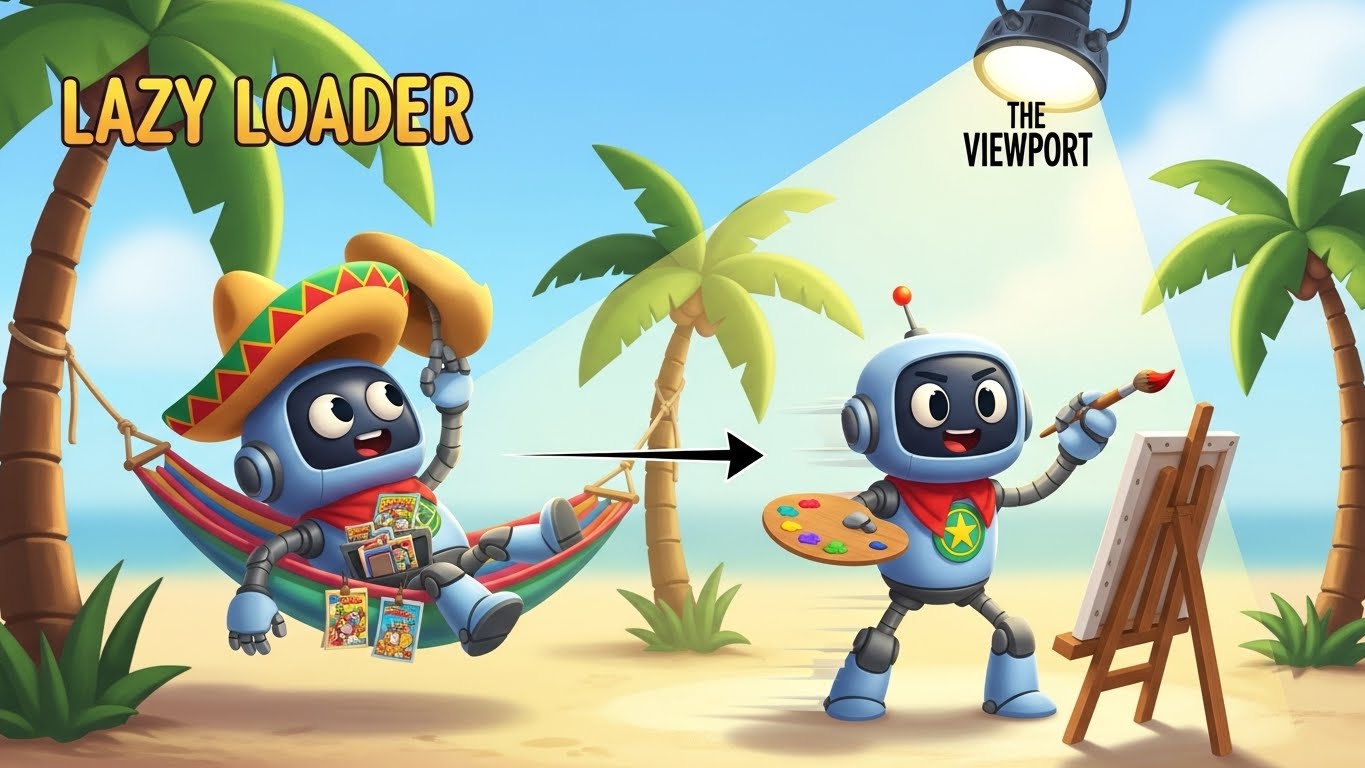
- Faster Page Loads: Images are lazy-loaded by default (only loaded when they enter the viewport).
- Asset Flexibility: On-demand image resizing even for remote images.
🟩 2. Local Images
Use local images by importing them. Next.js determines the width/height automatically.
import Image from 'next/image';
import heroPic from './hero.jpg'; // Located in same folder

export default function Page() {
  return (
    <Image
      src={heroPic}
      alt="Hero of the day"
      placeholder="blur" // Blur-up effect while loading!
    />
  );
}
🟧 3. Remote Images
For images from a URL (e.g., AWS S3, Cloudinary), you must supply width and height (to reserve space) and configure the domain.
Steps:
- Update
next.config.jsto allow the hostname:const nextConfig = { images: { remotePatterns: [ { protocol: 'https', hostname: 'assets.example.com', }, ], }, } - Use the component:
<Image
  src="https://assets.example.com/user-avatar.png"
  alt="User Avatar"
  width={500}
  height={500}
/>
🟥 4. Responsive & Fill
Sometimes you don’t know the size (e.g., a full-width hero image). Use the fill prop.
Note: The parent element must have position: relative.
<div style={{ position: 'relative', height: '500px' }}>
  <Image
    src="/hero.jpg"
    alt="Full width hero"
    fill
    style={{ objectFit: 'cover' }} // "cover", "contain", etc.
  />
</div>
Priority Loading:
Is the image above the fold (visible immediately)? Add the priority prop to disable lazy-loading and boost LCP (Largest Contentful Paint).
<Image src="/logo.png" alt="Logo" width={100} height={100} priority />🧪 Challenge: Day 6
- Download a large 4K wallpaper image.
- Place it in
public/wallpaper.jpg. - Display it on your page using
<Image>, set tofillthe screen. - Inspect the Network tab in DevTools. Notice how Next.js converts it to WebP/AVIF and resizes it to fit your browser window perfectly!
See you tomorrow for Metadata & SEO! 🔍